Purpose of the Object Dependencies Browser
How to use the Object Dependencies Browser
How to display dependencies for another object
When you define or import an object, it is stored in the metadata repository and is available for reuse by other objects. Since all objects must have a unique name, you can reuse an object by referring to it using its unique, logical name. This functionality is known as reusing objects by reference.
For example, a TopographyDiagram uses other metadata objects, such as HostGroups, Hosts, and so on. However, the objects used by that TopographyDiagram exist in the repository as self-contained units and can be reused in association with other objects in a separate TopographyDiagram. In turn, each of those objects can use and be used by other objects.
To help users manage the interlinked network of objects, the software provides the Object Dependencies Browser that displays the object dependencies for a selected object. In particular, the Object Dependencies Browser is useful when you remove an object from the Server. This action may have an impact on the objects that use the selected object: if an Application object is no longer on a Server, the Channels and Integration-Services-Diagrams that use it can no longer execute correctly.
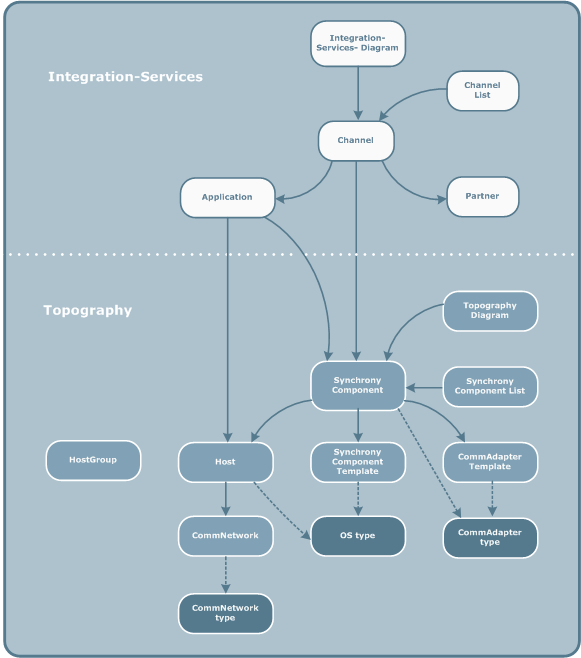
To maintain consistency and coherence in this interlinked network of metadata objects, the objects are arranged in a specific hierarchy. Objects are said to use objects that are below them in the object hierarchy, as shown in the object hierarchy diagram below.
The following diagram illustrates how objects relate to one another in the object hierarchy.
For example, a Channel uses a Axway Server, a Partner and an Application. An Axway Server uses a Host which, in turn uses a CommNetwork.
This means that when you modify an object:
You must then re-check the modified object before you can send it to Server. For details, see Modifying objects and Checking objects.
In some cases, the link between certain objects is a weak dependency. That is, modifications to one of the objects has no impact on the other object.
If the link with another object represents a weak dependency, the Dependencies Browser displays blue arrows to the left of the object name:
 Host1
Host1
The objects at the lowest level of the object hierarchy are based on a given attribute or sub-object type: CommNetwork type, OS type, CommAdapter type. This link has no impact on object status.
In ProcessManager, the icon  indicates that the object
used by the selected object is an embedded Business Process.
indicates that the object
used by the selected object is an embedded Business Process.
The Object Dependencies Browser shows how objects relate to each other in the object hierarchy. You can display the object dependencies for all metadata objects.
- Right-click the object and select Object Dependencies Browser from the contextual menu
- Click
on the toolbar
- Select Tools > Object Dependencies Browser from the menu bar
The Object Dependencies Browser displays:
- The selected object
- Objects that use the selected object
- Objects that the selected object uses
| Icon | Function |
|---|---|
|
|
Display the properties window for an object that you select in the Object Dependencies Browser |
|
|
Recursive check: check the properties of the selected object and all objects that it uses |
|
|
Delete the selected object |
|
|
Send to Server Complete of selected object |
|
|
Send selected object to Server |
|
|
Commit the selected object Transfer CFT only |
|
|
Remove the selected object from the Server |
|
|
Analyze dependencies for the selected object in the same window |
|
|
Analyze dependencies for the selected object in a new window |
|
|
Display dependencies for the object analyzed before the current object |
|
|
Display dependencies for the object analyzed after the current object |
|
|
Refresh the current tree of objects to take into account any modifications |
|
|
Filter the set of objects displayed (currently only available in the Flat view) |
You can either display object dependencies for a new object in the current window, or alternatively open a new Object Dependencies Browser for the selected object.
To display dependencies for a new object in the current Object Dependencies Browser, use one of the following techniques:
on the Object
Dependencies toolbarTo display dependencies for an object in a new Object Dependencies Browser, select
the object from the tree of objects in the Object
Dependencies Browser and click  on the toolbar.
The Object Dependencies Browser provides two possible display modes:


