KB Article #102309
How to update MailGate
How to update MailGate
Summary
The article describes how to perform MailGate update.
Details
Your MailGate will benefit from regular system updates. Updates will be available in a variety of forms. They may be delivered via e-mail, or more commonly, you will be directed to the Axway Support Portal website to download update files to your network. You can then log into the administrator account and perform system updates.
- To update a MailGate system, you will need to download the latest releases or patches from the Downloads page on the Axway Support Portal website. A link to this download page can be found within the administrative interface in your MailGate.
- Open the Administration > System Settings >Updates page.
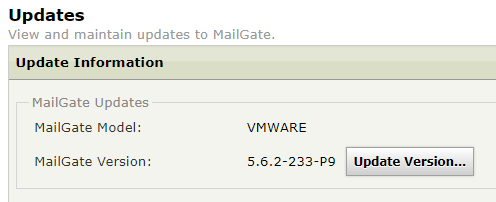
- Click the Update Version ... button in the MailGate Updates section.
- Open the Administration > System Settings >Updates page.
- The MailGate System Update section will appear.
- Select the Axway: MailGate System Update Server link. The link will open in a new browser tab or window.
- The page will list all MailGate system updates that have been released. Download the version you wish to upgrade to. Remember that for each particular MailGate version you can apply only a limited number of updates. When selecting the update to download, please verify the version that you are currently using and select the correct update. If you try to update to a version that is not supported then the update will fail.
- In the page displaying the MailGate System Update section (see 2 above), click the Choose File button, and select the update file you just downloaded.
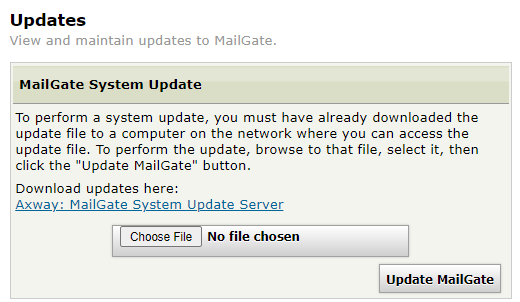
- Finally, click the Update MailGate button. The file will be uploaded and checked. If the update is valid, then MailGate would ask if you wish to continue with the update.
Additional information
If you want to upgrade appliances in a clustered configuration, check the release notes of the update file you want to install. You might have to disjoin the appliances from the cluster before installing the update file.
MailGate Updates page contains also the Anti-Spam, Anti-Virus, and Sandboxing Updates.
- Press Update Now to update definitions.
- The Anti-Spam Engine filter version displayed (for example B2021061022) is defined in five parts. B represents the Anti-Spam engine, followed by the YYYY-MM-DD data and the current day revision number.
- The Anti-Virus Engine may vary from either Kaspersky or McAfee depending on the license you have purchased.