KB Article #177985
Using the Windows Task Scheduler to start API Gateway processes at boot
Problem
API Gateway Node Managers and Server Instances can be registered and started via Windows Services (SCM) . The managedomain configuration tool has the option when creating an instance of registering to start the process through Windows services.
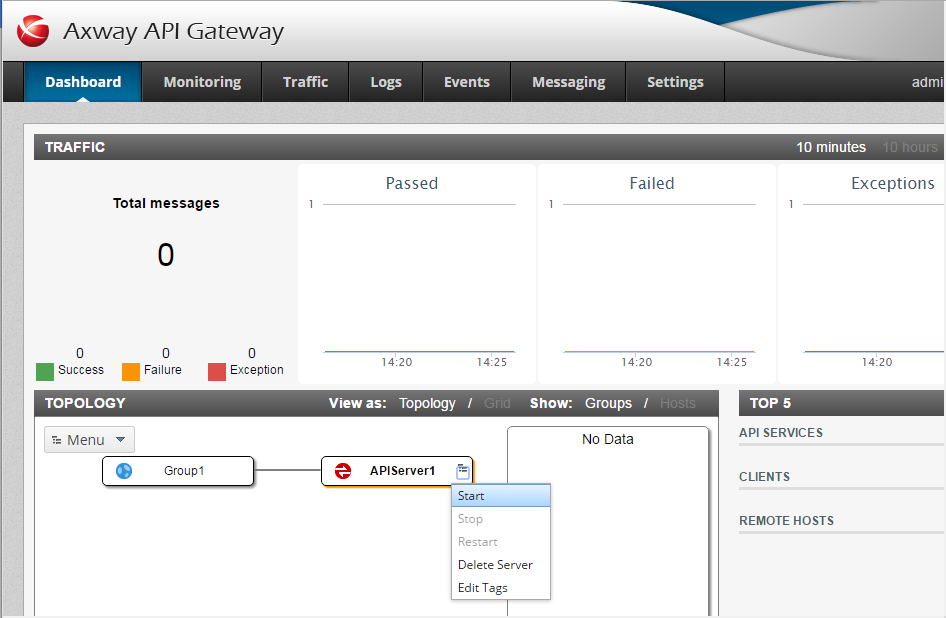
This works fine except for a known issue in that API Gateway Manager (8090) is unable to start/stop the instances via the browser (i.e. in the topology from the drop down on the instance object)
If the start/stop functionality is required with boot started services then there is a workaround to use Windows Task Scheduler.
Task Manager Setup
The following steps show how to setup a nodemanager and an instance in the task scheduler to be activated at system boot time.
1. Start the Task Scheduler
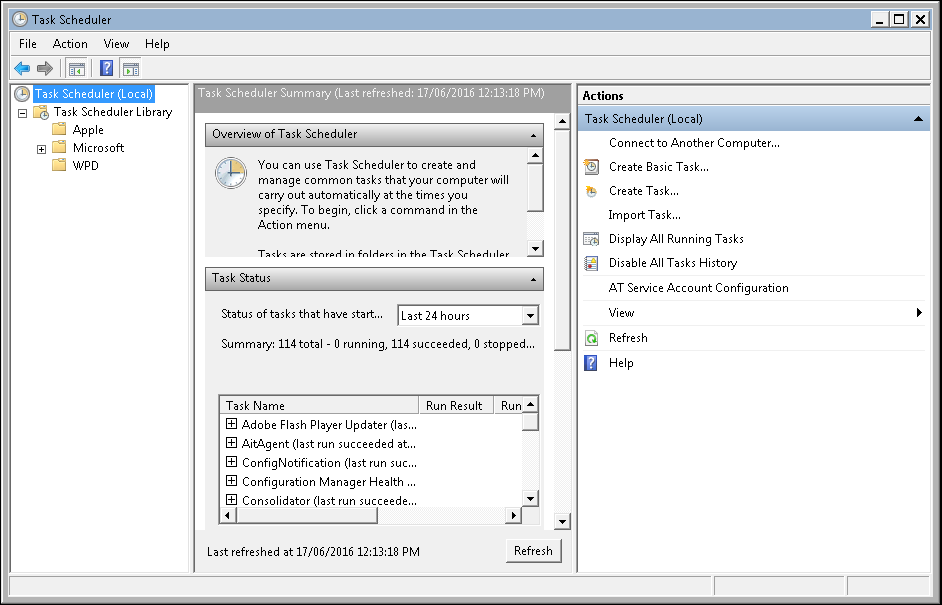
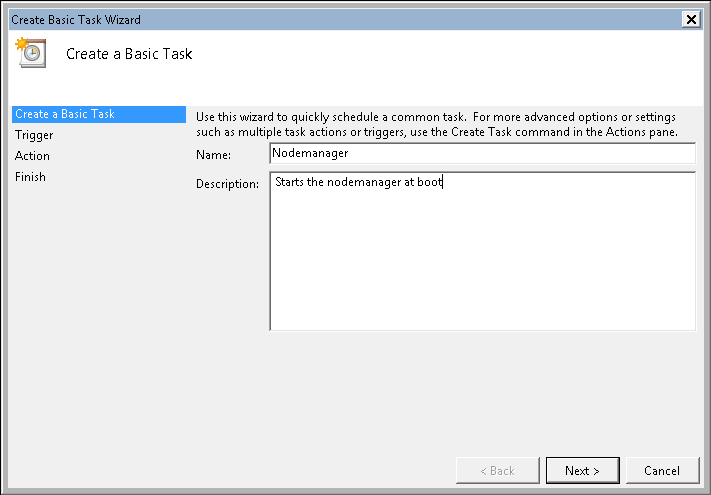
2. Launch the Create a Basic Task wizard and give it a name e.g. Nodemanager
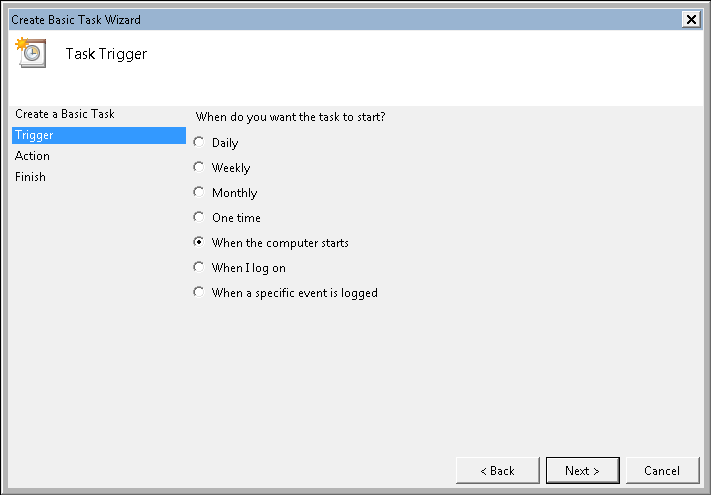
3. Task trigger "when the computer starts"
4. Action "Start a program"
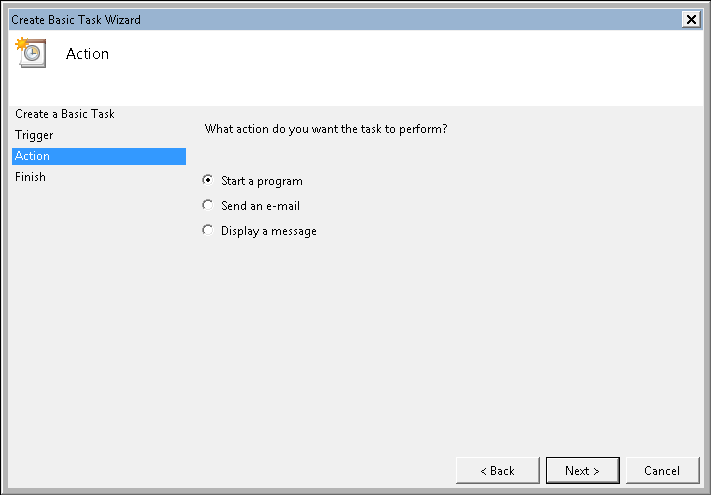
5. Locate the nodemanager bat file
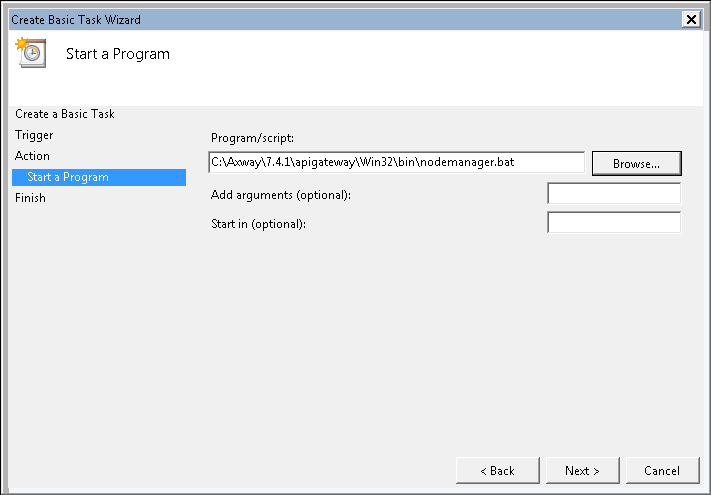
6. Finish and open the properties for further options

7. "run whether user is logged on or not" and "highest privileges"
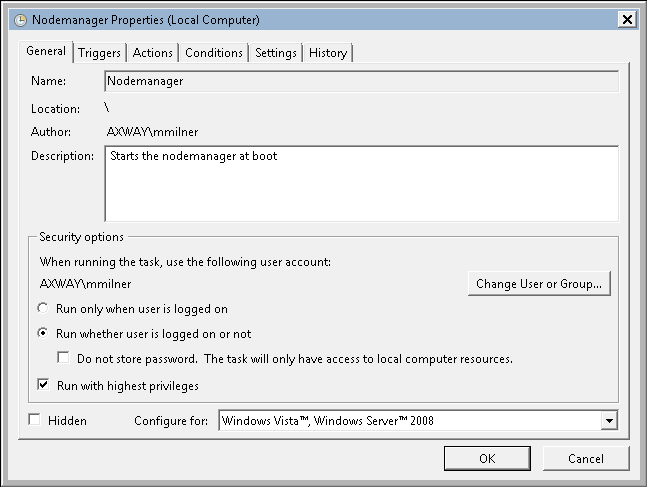
8. Properties remove conditions
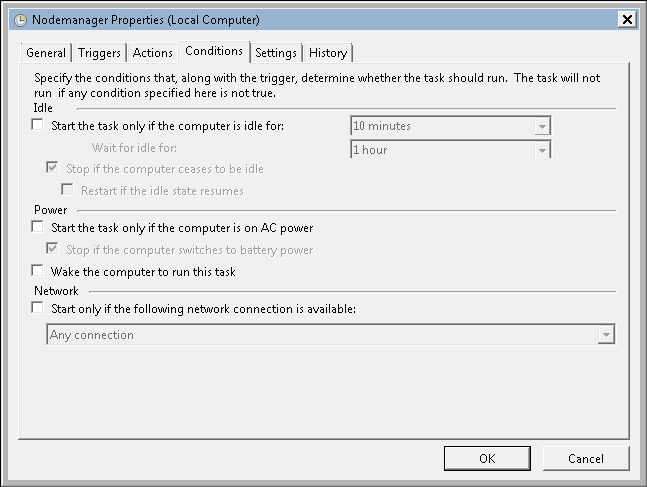
9. Properties Settings "keep it running"
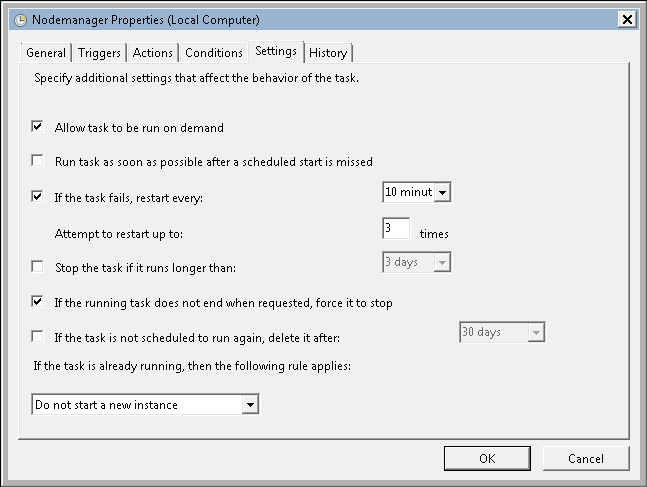
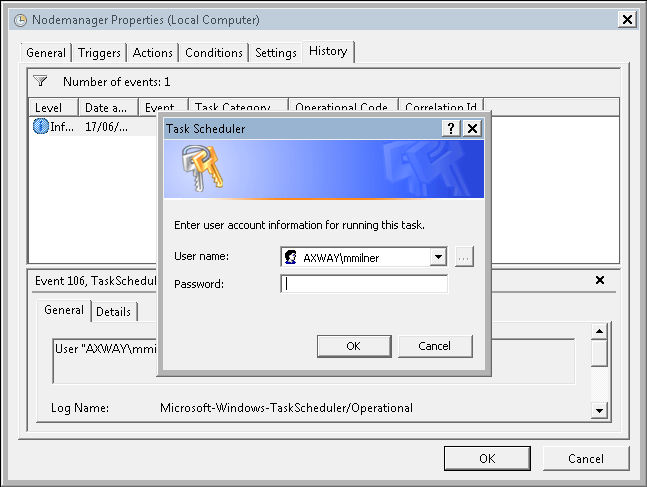
10. Account Password needed
11. Run through 1-10 again for each instance that requires staring at boot
12. Instances need to use startinstance.bat with -g and -n parameters
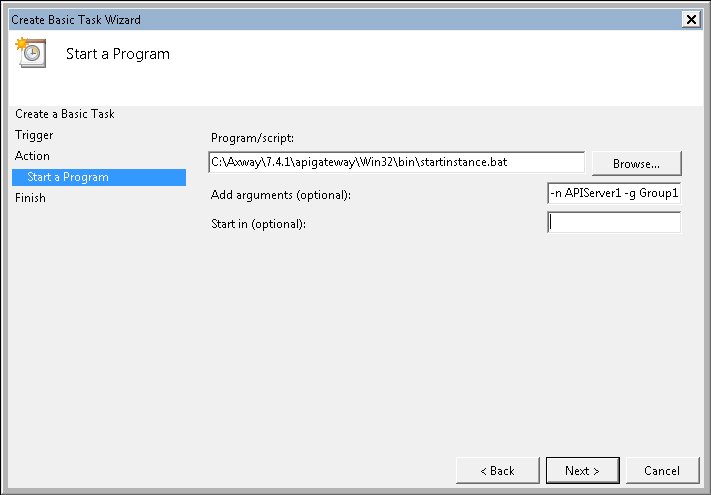
13. API Gateway Manager can now start and stop the Instances which are started at boot time