Copying and pasting objects
About
the copy/paste feature
Before
copying and pasting objects
Copying
and pasting between Folders
How
to copy and paste objects
What
happens when you copy and paste an object
Resolving
naming conflicts
About the copy/paste
feature
Use the copy/paste feature in Composer to accelerate the object definition
process. You may have an existing object that is very close to the definition
that you require. Rather than redefine all object properties from scratch,
you can make a copy of the existing object and modify it as required.
Objects that you define and store in the metadata repository are available
for reuse and modification by any user with authorized access to that
object.However, to prevent users
from making conflicting modifications to objects, the software imposes
certain restrictions.
You can only modify objects:
- With the status
Checked or ToBeChecked
- That are not currently
blocked by another user
To modify a blocked object, make a copy of the object. The copied
object then exists in the repository as a separate, distinct object that
you can modify as required. The original
object and all the references to it remain intact.
For details, see Modifying
objects.
Before copying and pasting objects
Copy/Paste restrictions
Before copying and pasting objects, keep in mind the following restrictions:
- You can only copy
and paste a single object at a time.
- You cannot paste
objects to a remote Entity.
- You cannot paste objects to a PrebuiltFolder.
Copying and pasting
between Folders
The result of copy/paste operations depends on the source and target
Folders. When you copy and paste an object to a WorkFolder that belongs
to:
- The same root Folder
as the source Folder, the software only duplicates the selected object
and retains all its references to other objects.
- A different root
Folder from the source Folder, the software also duplicates all objects
used by the selected object.
How to copy and paste objects
You can copy and paste objects to the same or to a different WorkFolder
via the navigator pane, the Entity
Browser.
To copy and paste an object:
- Select the object you want
to copy (in either the navigator pane or in the Entity
Browser).
- Click
 on the
toolbar or select Copy from the
Edit menu.
on the
toolbar or select Copy from the
Edit menu.
- Click
 on the
toolbar or select Paste from the
Edit menu.
on the
toolbar or select Paste from the
Edit menu.
- Alternatively you can Copy & Paste the objects using the Ctrl+C/Ctrl+V keyboard combination in the navigator pane and Alt+C /Alt+V in the entity browser.
The copied object is added to the list of objects in the navigator
pane. To distinguish the copied object from the original, the suffix _copy is
added to the name of the copied object, for example: Object55_copy. The status of the copied object is ToBeChecked.
What happens
when you copy and paste an object
Copy and paste operations usually involve the
straightforward duplication of a single object. However, in Axway Composer, this operation is complicated by the following two factors:
- In the
Integration-Services workbench, objects are stored in Folders.
- Composer
objects exist in a network of inter-linked dependencies and are only valid
if the links to other objects are maintained.
If you copy an
object to a Folder that belongs to the same root Folder as the original object, Composer
only copies the selected object. If, on the other hand, you copy and paste
an object and paste it to a Folder that belongs to a different root Folder, Composer maintains object validity
and coherence by also duplicating all dependent objects to the target
Folder.
Resolving naming conflicts
Pasting an object may cause certain object naming
conflicts, for example if an object of the same type and with the same
name already exists in the target Folder in the target Entity.
When you copy two objects that have a dependency
link between them, for example a Business-Document and an associated Mapping-Rule,
or a Host and a CommNetwork, several possible cases may occur when you
paste the object, as described next.
Case 1: No object with the same name and type exists in the target
root Folder
The objects that you paste to the target Folder are identical to the
original objects and retain all references to other objects. However,
the Signature tab is updated to
display the new creation/modification date. The pasted objects take the
status ToBeChecked.
If you copy a child object, and paste it to a Folder other than the
Folder of its parent object, the software copies both the parent object
and the child object to the target Folder, even if the tree of objects
in the source and target root Folders is not identical.
Case 2: A parent object with the same name and type already exists
in the target root Folder
The child object that you copy has no conflict with an existing object
in the target Folder, so it is copied to the target Folder with the same
name as the original.
However, since a parent object with the same
name and of the same type already exists in the target Folder, a naming
conflict exists. To resolve this conflict, Composer pastes the parent
object into the target Folder and adds the suffix _Copy
to the object name. For example: MyObject
becomes MyObject_Copy.
The dependency link between the parent and child
object is recreated and the copied objects take the status ToBeChecked.
Note: To check a copied object,
you must first rename it. For example, some object names are limited to
three or five characters (for example an AccountingIntegrator Output-Event
or Transformation-Rule). Before you can check this kind of object, you
must rename the object in order to remain within the restricted number
of characters.
Case 3: An object with the same name and type as the child object exists
in the target root Folder
Before the software pastes the child object, it checks that the existing
object in the target Folder is identical, with the same references and
properties. If the objects are identical, the source child object is not
pasted to the target Folder. If the copy/paste operation also involves
pasting the parent object, Composer pastes the parent object and recreates
a link between the copied parent object and the existing child object.
If the existing child object in the target Folder is not
identical to the original, Composer pastes the source child object
to the Folder and adds the suffix _Copy
to the object name. Despite the change to the child object name,
the parent object name does not change since there is no naming conflict.
To paste the object to two Folders that belong to the same root Folder,
you must perform two copy/paste operations. Since copied objects with
the same name already exist in the root Folder, Composer adds the suffix
_Copy to the objects copied to
the second Folder.
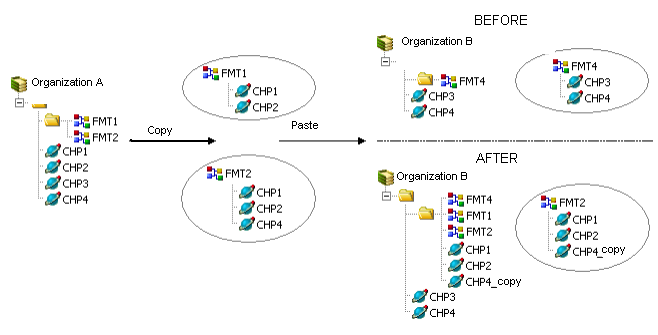
Case 4: A child object and a parent object
with the same name and type already exist in the target Folder
Composer starts checking the objects from the
lowest level in the tree structure upwards. If it identifies an object
in the target root Folder with the same name and type, it checks that
the two objects are identical. If the objects have identical properties
and dependencies, Composer does not create a copy of the object in the
target Folder. If the objects are not identical, Composer creates a copy
of the object and adds the suffix _copy
to the object name.
It continues to check all objects in the tree
of objects until it reaches the highest level of parent object.
Case 5: Multiple copies of an object
If you create multiple copies of the same object,
Composer adds an incremental number to the suffix _copy.
Case 6: Copying and pasting a Rule version
(AccountingIntegrator only)
In AccountingIntegrator, when you create a new
version of a Rule, Composer automatically attaches this new version to
all Input-Events and Outputs that reference this Rule. So when you paste
the object, Composer must link the newly created Rule version object to
all Input-Events and Processing-Context-Out objects that already reference
the Rule. If any Input-Event or Processing-Context-Out is non-modifiable,
Composer creates a copy of the object, and names it Source
Object Name_copy. This means that no update to the Input-Event
or to the Processing-Context-Out is required. To link this new Rule version
to objects that already reference the Rule, you must first make all referenced
objects modifiable, then modify the new Rule version name by deleting
the suffix _copy, and finally
save the modification.