EBICS Server repository
Overview
About data acquisition
About data storage
Configuring data storage
About data provision
Configuring data provision
Overview
The EBICS Server repository provides the following services for use with the EBICS Server:
- Data acquisition from bank back-end applications
- Data storage
- Data provision to customers
The following sections describe these services.
About data acquisition
The repository supplier provided by the FEX Java API performs two principal tasks:
- File acquisition from the back-end. This service creates an entry in the data store which can either be a directory tree that is created if it does not already exist or a table in the database.
- Database updating, to maintain markers on which data has been read by each valid user.
About data storage
There are two ways in FEX to handle the storage of data:
- A local file-system data hierarchy
- A remote database-based file repository, which allows the data to be stored outside the DMZ
You choose one of these methods for each order type.
File-system data storage
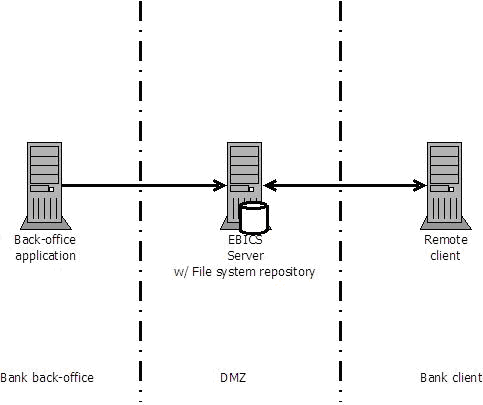
The file-system repository storage service writes the data sent from the back end to the file system. It stores the date in a tree with the following structure:
..\dataStore\<EbicsHostID>\account\<HashCode(IBAN) mod 1000>\<IBAN>\<OrderType>\<FileFormat>\date
In this tree structure:
- "date" is the name of the stored file, and not a directory. "date" has the format yyyymmdd
- <HashCode(IBAN) mod 1000> provides a way to sort account numbers. The hash code is computed as s[0]*31^(n-1) + s[1]*31^(n-2) + ... + s[n-1] where s[i] is the ith character of the string, n is the length of the string, and ^ indicates exponentiation. (The hash value of an empty string is zero.) For additional information, refer to the javadoc.
The storage service manages objects such as EBICS banks, customers and accounts, and orders.
Example of a stored file residing in a tree
..\dataStore\BANKNGID\account\286\BE43068999999501\FDL\camt.xxx.cfonb120.stm\20090804
Where:
- BANKNGID = EbicsHostId of the created bank
- 286 = IBAN hashcode modulo 1000
- BE43068999999501 = IBAN number created inside the EBICS Server and linked to the customer and user
- FDL = Fetch ordertype
- camt.xxx.cfonb120.stm = File format used during the fetch request
- 20090804 = Name of the file that is stored in the repository
Database data storage (remote repository)
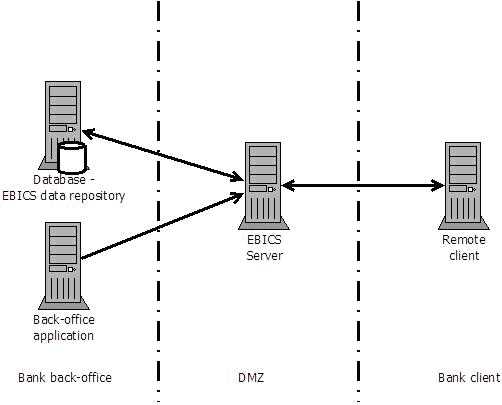
This data storage puts the files in a table of the database which allows you to deport the location of the data storage to a remote server.
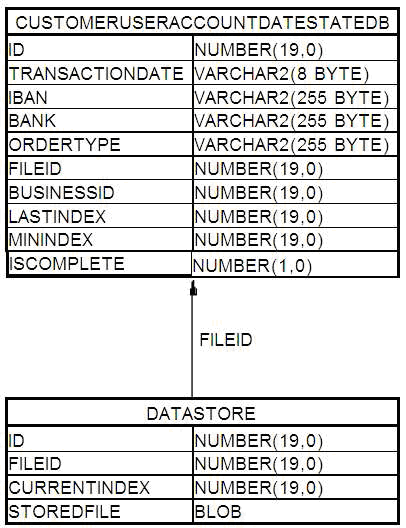
The storage uses two tables:
- CUSTOMERUSERACCOUNTDATESTATEDB
- DATASTORE
The CUSTOMERUSERACCOUNTDATESTATEDB table holds the information regarding the entities related to the supplied file (which bank, customer, user, account is involved, markers to know which files have already been fetched and by whom, …).
The DATASTORE table stores the actual file in the STOREDFILE blob column.
The linkage between the tables is done with the FILEID number which is defined as the hash of the concatenation of: the IBAN of the involved account, the bank host ID, the order type and the date (in YYYYMMDD format).
Configuring data storage
JBoss server installations
 View procedure
- Navigate to the following file, and open it in a text editor:
- %Ebics_Server_Root%\server\bankrechner\conf\wrapper.conf
- The default path listed in this file is:
- wrapper.java.additional.7=-DdataStorePath=../dataStore
- Update this line if the data store is located in another place.
- Save and close the file.
WebSphere server installations
View procedure
- On the WebSphere Servers tab > Application servers, select the name of your server.
- Select Java and Process Management > Process Definition > Java Virtual Machine > Custom properties.
- Click New to add a new property. Enter the name dataStorePath. Set the value to the root of the tree directory used to store files for fetch operations.
WebLogic server installations
View procedure
You may need to define the values of the following variables:
- dataDir: path to directory that contains the EBICS Server persistent data
- dataStorePath: path of the repository
- configurationPath: absolute path of the configuration.properties file
Before you begin, make sure that the directories exist. The Server checks and creates the required subdirectories.
If the bankrechner.dataDir variable is not defined, the EBICS Server uses the directory:
- UNIX: /opt/bankrechner
- Windows: C:\opt\bankrechner
For example, to define the bankrechner.dataDir variable:
- Modify the file:
- UNIX:
- <Server>/users_projects/domains/ebics_server/bin/startWebLogic.sh
- Windows:
- <Server>\users_projects\domains\ebics_server\bin\startWebLogic.bat
- Before the command, echo starting weblogic with Java version., add the line:
- UNIX:
- JAVA_OPTIONS="${JAVA_OPTIONS} -Dbankrechner.dataDir=/Any/Directory/Name>"
- Windows:
- JAVA_OPTIONS="%JAVA_OPTIONS% -Dbankrechner.dataDir=C:\\Any\\Directory\\Name>"
Repeat this procedure for the dataStorePath and configurationPath variables.
About data provision
The repository handler service retrieves files that have been previously acquired and stored by the repository. The handler service responds to EBICS fetch requests from remote customers.
Configuring data provision
To enable EBICS fetch transactions between the EBICS Server and an EBICS Client, you specify the generic fetch transaction in the EBICS Server GUI.
Prerequisites
The following procedure explains how to link the generic fetch transaction handler to a Fetch order type.
A complete EBICS exchange configuration requires a set of object definitions that include a bank, a customer, a user and one or more accounts. For details about configuring EBICS Server for exchanges with corporate clients, refer to the dedicated topics.
Procedure
- Open a session of the EBICS Server GUI.
- Click Start change process.
- Click the Processing menu item, then select Fetch transactions from the context menu.
- Select the Fetch order type you intend to use and click Edit.
- From the Handler field, select:
- Axway Generic Fetch Transaction if you intend to use the file-system data store
- Axway Database Fetch Handler if you want to have your files in a database.
- Click Save.
- Click Terminate change on the order type page.
- Click Terminate change on the main page.
Note: If you activate Monitoring via Sentinel in the configuration, the number of bytes that you download is sent to Sentinel for each fetch transaction.