KB Article #177883
Troubleshooting steps covering scenarios where there is an issue with port 1717 or with SecureClient integrity.
Problem
When the scheduler service is failing to start due to a conflict with the usage of port 1717, or SecureClient integrity is impaired.
Resolution
1. Check that port 1717 is not used by any third-party application or blocked at the firewall level. This could be easily determined by following the steps below:
- Execute the following command in the command prompt:
netstat -a -n -o | findstr 1717
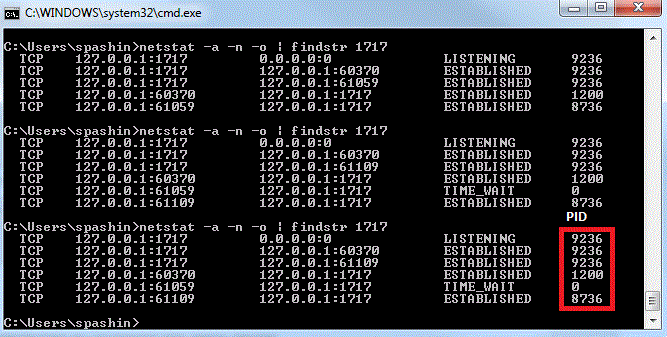
-This would provide you the PID (Process ID) of the instance/application using the port.
-Open Task Manager and check for the process ID (PID) which is using the port.
-If the port is not used by another third-party application, check if the port is opened on firewall level. This can be checked by navigating to Start Menu->Control Panel->Windows Firewall->Advanced Settings->Monitoring->View Active Firewall rules.
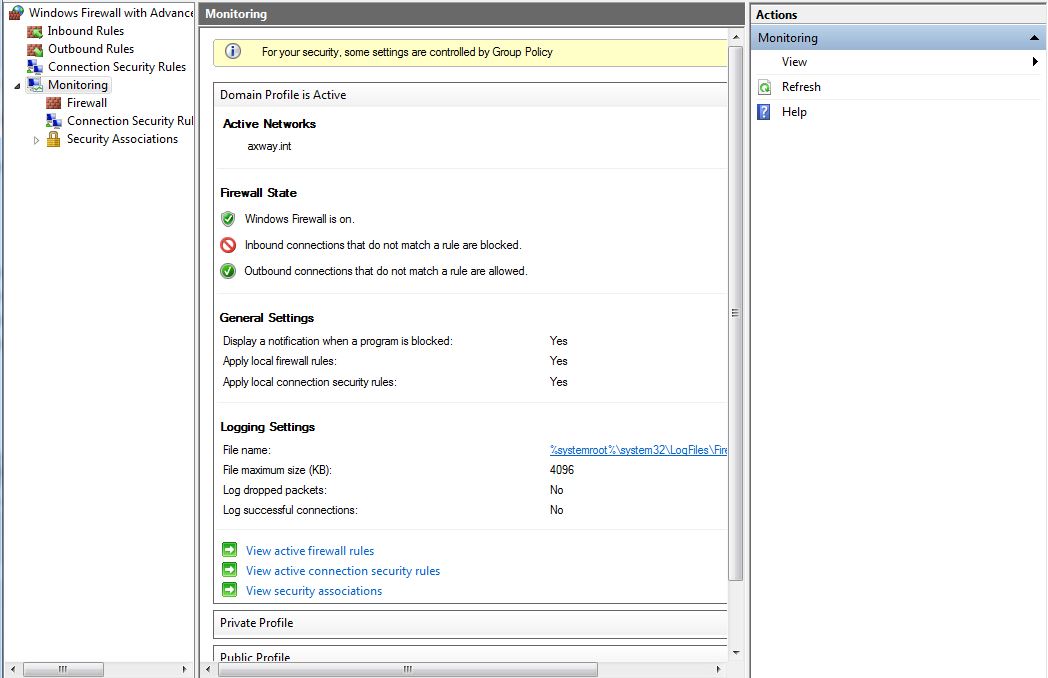
-In the "View Active Firewall rules" configuration pane, check the usage and configuration of ports, and see if there is an active rule blocking port 1717 used by the SecureClient application.
Also, check that port 1717 is not blocked by antivirus program. If it is, you should unblock it in order for the SecureClient application to be able to start the Scheduler service.
2. Identify if the issue is not related to a wrong entry in the database (.dbf) files, as follows:
-First quit the SecureClient application, and check if there are hung "java" or "javaw" processes in the Task Manager.
-click "Open File Location"
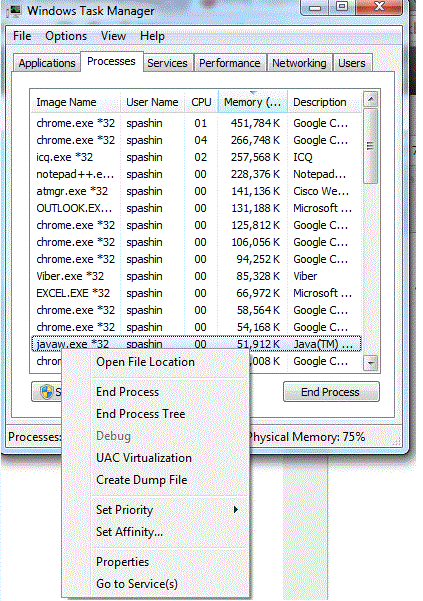
-If the file is within the SecureClient folder, then this is a leftover process which you should kill.
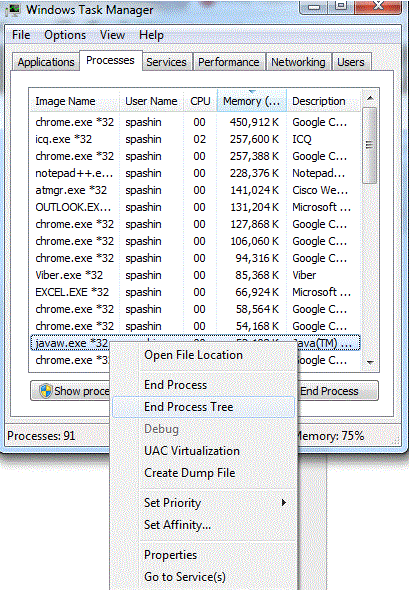
-Then navigate to “%APPDATA%\axway\SecureClient\ and perform the following actions:
-Create a backup of the SecureClient application directory by renaming the folder "SecureClient" located in "%APPDATA%\axway\" to SecureClient.bkp, for example.

-Navigate to “%APPDATA%"\axway\SecureClient\date and clean all the files with extension .dbf
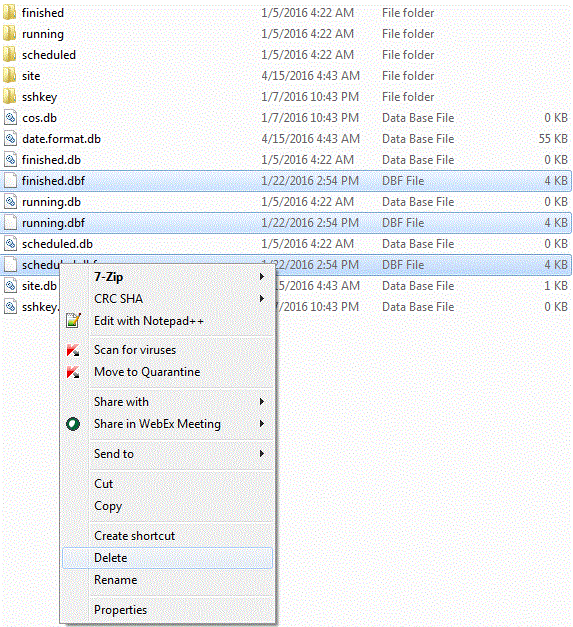
-Start the SecureClient application again.
3. Identify whether the issue is not related to the Secure Client application integration:
-Make sure that the SecureClient is stopped (Start Task manager, go to Processes tab, and kill all that say "java.exe" and "javaw.exe")
-Navigate to the "%APPDATA%\axway\" location.
-Make a backup of the "SecureClient" folder by copying it and all of its contents to a different location on the computer.
-After the backup of the "SecureClient" folder is created, remove the folder from the %APPDATA%\axway\" location. (The SecureClient directory will be recreated on the next start of the application.)
-Start the SecureClient application, and when you are prompted for a license, cancel the prompt window.
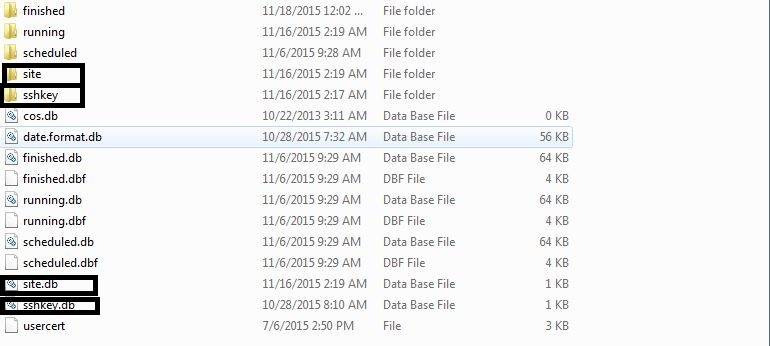
-Navigate to %APPDATA%\axway\ and copy the following contents from the already created "SecureClient" backup folder into the new "SecureClient" folder created on application start:
-sclient.lic file located in the "SecureClient" folder

-site.db file located in "SecureClient\data\" folder
-sshkey.db file if present located in "SecureClient\data\" folder
-"site" folder located in "SecureClient\data\" folder
-"sshkey" folder, if present, located in "SecureClient\data\" folder
-Start the SecureClient application again.
-Please note that all the jobs in the scheduler should be recreated again manually.
4. If you see an error like the following in the logs:
Scheduler fatal error! :java.lang.NumberFormatException: For input string: "15xtTaskID=12"
then that indicates that something is corrupted in one of the properties files. For example, the above error can be corrected by editing the context.scheduler.properties file (in %APPDATA%\axway\SecureClient\properties) and changing the incorrect entry "15xtTaskID=12" to "NextTaskID=12".