KB Article #180295
Status of the flow and processing on EBICS Gateway
File state
EBICS Gateway server assigns a state to each send order, which indicates the situation of the order. While the order is processed, its situation changes and thus also the state. The states visible in the administration interface are listed in the table below. The states are explained in the section Details.
On the UI page Files(see chapter below File Overview), the state is displayed in a column of the overview. States that could appear in this overview, are labeled with a check mark in the column O in the table below. In the column F, those states are checked, which can be selected from the drop-down list State for filtering the overview. Additionally, there are some collective states, which group several single states and thus facilitate a quick and easy creation of a filtered overview.
The states in the column P are used for the monitoring of orders.
Overview
| Name | O | F | P |
| new | ✓ | ✓ | ✓ |
| waiting for signatures | ✓ | ✓ | |
| processing | ✓ | ✓ | ✓ |
| waiting for manual release | ✓ | ✓ | ✓ |
| waiting for being collected | ✓ | ✓ | |
| waiting for feedback | ✓ | ✓ | ✓ |
| positive feedback signal | ✓ | ✓ | |
| negative feedback signal | ✓ | ✓ | ✓ |
| terminated | ✓ | ||
| manually terminated | ✓ | ||
| canceled | ✓ | ✓ | ✓ |
| error | ✓ | ✓ | ✓ |
| Collective states | |||
| OK (processed) | ✓ | ||
| Not OK | ✓ | ||
| waiting for … | ✓ | ||
| terminated | ✓ | ||
Details of states
new
A new order has this state. At the same time a file has been created, which will be retrieved shortly.
waiting for signatures
An order is in this state when waiting for signatures.
processing
This state will be set, when the postprocessing of an order has begun or is about to begin shortly.
waiting for manual release
For orders with this state, so-called D files were sent by the customer. These are files without a bank-technical signature and must be released manually by an administrator. This is done on the details page of the file.
waiting for being collected
Orders with this state are waiting to be sent by the post processing step Bulk Processing.
waiting for feedback
Orders with this state are waiting for a feedback from the core banking system (backend).
Note: To get a feedback from the backend, a directory monitoring with the provision Backend-Feedback must be configured. .
positive feedback signal
For orders with this state, the core banking system has given a positive feedback. See also the note above.
negative feedback signal
For orders with this state, the core banking system has given a negative feedback. See also the note above.
terminated
When an order was processed correctly, it accepts this state.
manually terminated
This state will be given when an administrator has caused the situation.
Note: An administrator can change the state of an order on the page Administrative remark. This is described in section below “File details - Administrative remark. “
canceled
Orders in this state were either transmitted with errors, canceled in the distributed signature, or were manually canceled by an administrator. See also the note above.
Error
For orders that have this state, an error occurred during processing.
OK (processed)
This is a collective state, which can be used to filter orders that are in one of the following single states: terminated, canceled, positive feedback signal.
Not OK
This collective state filters orders that are in a state other than OK (processed).
waiting for …
With this collective state orders can be filtered that are in a waiting state. In particular, this can be: waiting for signatures, waiting for feedback, waiting for being collected, waiting for data file, waiting for FIFO resources.
terminated
This collective state filters orders that are in one of the following single states: terminated, manually terminated.
Files overview
On this page, files are displayed, which have been transmitted by a customer to the EBICS Gateway Server. Such files are also called send orders. Each transmission that started correctly appears in this overview. By clicking on one of the Details buttons in the overview the details page of the respective file is displayed.
In the overview the columns Customer, Received (Period), No. (Order number), Type (Order type), Channel and State are displayed. The information in parentheses refer to the names of the fields in the search form.
Using the search form, the overview can be filtered by the following fields.
Period
Here you can set a period of time, within which files are displayed. The transmission must have started within the "from-to" range specified here, so that the file appears in the overview. The current day is set as the default, so the files that have been transmitted today are displayed. By clicking on the button "..." a calendar opens, which allows to set the date with the mouse.
Bank
With this drop-down list you can filter by a bank. If this field is left empty, the files of all banks are displayed, for which you are authorized.
Customer
Herewith only files are displayed, which were transferred for the specified customer ID.
User-Id
Herewith only files are displayed, which were transferred for the specified user ID.
Channel
You can restrict the view to files that have been transferred via EBICS. If the empty value is selected here, all files are displayed for this field. You can also filter files, which were created by one of the processing types Post processing, Scheduler, or Directories.
Order number
Every file transfer is assigned a unique order number either by the customer system, or, as of EBICS version 2.5, by the EBICS Gateway Server. With this input you can filter the list to files with this order number.
Order type
This can be used to filter by one or more order types. For example, entering CC filters by the order types CCT and CCU.
Additional information
As of EBICS version 3.0, the client can send an Additional information to the EBICS Gateway Server, which would then be displayed in this field.
State
You can filter the overview by a state through a selection from this drop-down list. If you leave the field blank, the files of all states are displayed. You can find an overview and descriptions of the file states in the chapter above File state.
| • error | ||
| • Not OK | • new | |
| • canceled | ||
automatically reload
If this checkbox is marked, the overview is automatically updated every ten seconds. A reverse counter shows the time until the next update.
Administrative remark
> Files > Details > Add an administrative remark
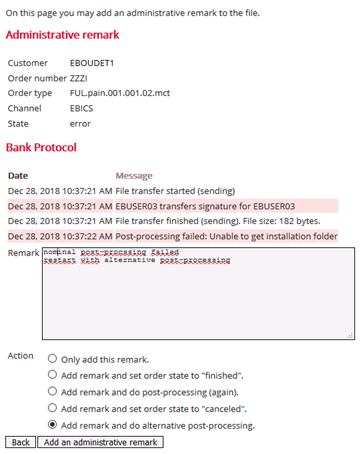
On this page, you can add a remark for the selected order. This will be added to the bank protocol. Furthermore, you can have the order be processed again or change its state. All these functions are possible for both sent and downloaded files.
Note: Since no change process needs to be created for writing an administrative remark, this function is also available in view mode.
Administrative remark
This paragraph shows the most important data of the order.
Bank Protocol
Here is an overview of the latest protocol entries for this order.
Remark
The administrative remark is entered in this text window. After that, it can be seen in the section Bank protocol on the details page of the file.
Action
You can not only add the remark, but also have the file be processed again afterwards. To do so, select the corresponding radio button. Furthermore, you can set the state of the order to one of the values finished or canceled. This is also possible for orders that are already in the state finished. The new state can then be seen in the field State on the details page and in the column State on the overview page. There, the state manually terminated is shown if you had set the order to canceled. See also the section File state.
If you have selected an alternative processing for the order type of the selected file and the user has the right Post process files differently, a fifth radio button appears here, which allows you to have the file processed again with a different post-processing chain.
If you have configured the four-eyes-principle for administrative remarks, these must be confirmed by another user, before they are added.
Figure: Adding an administrative remark
More functions
At the bottom of the page there are buttons for further functions.
Back
This button leads back to the details page of the order.
Add an administrative remark
By clicking this button the administrative remark is added and after that the details page of the order is called up.