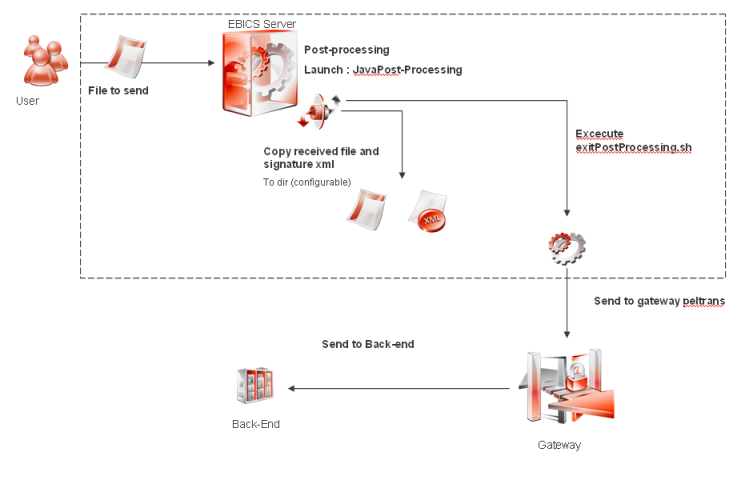
EBICS Server provides two integrated post-processing processes to forward files received during send transactions to Axway Gateway or to Axway Messaging. These processes enable you to export signatures received by EBICS Server to a dedicated XML file. The XML file can then be used to create a proof. If a transfer to Gateway or Messaging fails, the post-processing can be restarted from the EBICS Server UI or from the Java API.
Here are the different stages of the send transaction with Gateway post-processing:
Note: The data and signature files are not removed at the end of the post-processing.
In order to call Gateway, the post-processing needs to call one script. If FULorderParam is set to TEST, a different script can be called.
By default, the post-processing calls the exitPostprocessing scripts delivered with EBICS Server. The default scripts are provided in <EBICS Server installation directory>/Send/scripts/.
The script can be replaced by any other script.
The called scripts obtain some parameters through system properties.
| Property | Value |
|---|---|
| Bank | Host ID of the bank |
| EbicsId | EBICS Host ID of the bank |
| Customer | ID of the customer |
| UserId |
ID of the user. If two users signed the files, the second user will be identified by UserId_2 property. |
| OrderNumber | Order number of the send transaction |
| OrderTypeBL | Send order type Example: FUL.pain.xxx.400.vct |
| TestParam | TRUE if FULorderParam contains TEST, otherwise FALSE |
| Filename |
Name of the data file For more information about the file name, see "File naming conventions" later in this section. |
| AbsoluteFilePath | Complete file path of the data file |
| SignatureFilename | Name of the signature file |
| AbsoluteSignatureFilePath | Complete file path of the signature file |
| NbOfSignatures | Number of signatures of the data file |
| EBICSROOT | Path of the EBICS Server installation |
| TRACKINGOBJECT | Name of the Tracking Object used to notify Sentinel |
| SentinelCycleID | Sentinel Cycle ID for notification |
| RESTART_POSTPROCESSING | TRUE if the post-processing is manually restarted, otherwise FALSE |
You configure the Gateway post-processing is the same way as any other post-processing, via the menu Processing > Post processing. For an example, see EBICS Server example: Create a post-processing.
Complete the following fields:
| Field | Description |
|---|---|
| File directory | Path to the directory where the sent file is to be copied |
| Export signature proof | Check this box if you want to export the signature file |
| Signature proof directory | Path to the directory where the signature files are to be dumped |
| UserId | Add userId into the name of the file and signature file |
| Gateway transfer launching script | Path to the script to run. If empty, the default script is used |
| Gateway transfer launching script if TEST parameter is set | Path to the script to run when sent with test parameter. If empty, the default script is used |
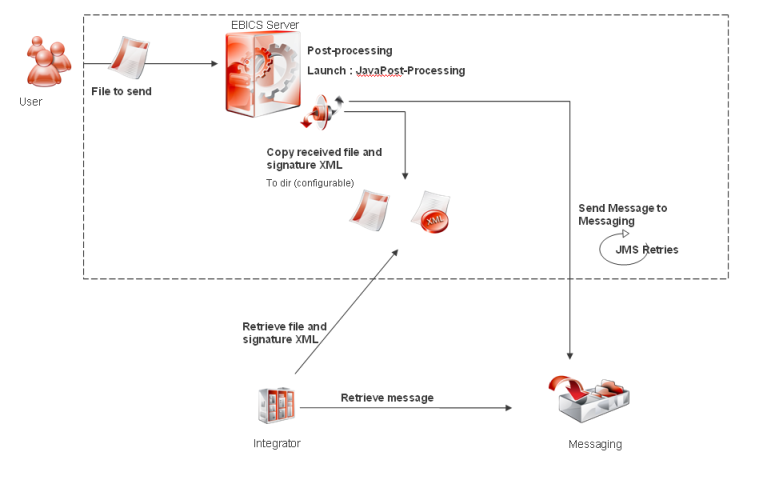
Here are the different stages of the send transaction with Messaging post-processing:
Note: The data and signature files are not removed at the end of the post-processing.
| Property | Value |
|---|---|
| Bank | Host ID of the bank |
| EbicsId | EBICS Host ID of the bank |
| Customer | ID of the customer |
| UserId |
ID of the user. If two users signed the files, the second user will be identified by Signer2 property. |
| OrderNumber | Order number of the send transaction |
| OrderTypeBL | Concatenation of send order type and file format. Example: FUL.pain.xxx.400.vct (OrderType.FileFormat) |
| OrderType | Send order type. Example: FUL |
| FileFormat | Send file format. Example: pain.xxx.400.vct. |
| TestParameter | TRUE if FULorderParam contains TEST, otherwise FALSE |
| OP_<CUSTOM> | If any custom order parameters were set, they will be available by adding the prefix "OP_". For example, if an EBICS Client set the custom order parameter MYPARAM, it will be accessible through the property OP_MYPARAM. |
| Filename |
Name of the data file. For more information about the file name, refer to "File naming conventions" in this topic. |
| AbsoluteFilePath | Complete file path of the data file |
| SignFilename | Name of the signature file |
| SignDirectoryName | Complete file path of the signature file |
| NbOfSignatures | Number of signatures of the data file |
| DirectoryName | Path of the EBICS Server installation |
| TrackingObject | Name of the Tracking Object used to notify Sentinel |
| SentinelCycleID | Sentinel Cycle ID for notification |
| ServerDate | EBICS Server current date in milliseconds (UNIX format) |
| ProcessingRestarted | TRUE if the post-processing is manually restarted, otherwise FALSE |
You configure the Messaging post-processing is the same way as any other post-processing, via the menu Processing > Post processing. For an example, see EBICS Server example: Create a post-processing.
Complete the following fields:
| Field | Description |
|---|---|
| File directory | Path to the directory where the sent file is to be copied |
| Export signature proof | Check this box if you want to export the signature file |
| Signature proof directory | Path to the directory where the signature files are to be dumped |
| UserId | Add userId into the name of the file and signature file |
| Hostname | Hostname of the Messaging server |
| Port | TCP port of the Messaging server |
| User | Name of the Messaging technical user. This must be filled only if security is activated in Messaging |
| Password | Password of the Messaging technical user. This must be filled only if security is activated in Messaging |
| Queue name | Name of the reception Queue inside the Queue manager of Messaging server |
| Queue manager name | Local Queue name manager |
| Max retries |
Number of retries performed if EBICS Server is not able to connect to Messaging. After attempting this max number, the post-processing will fail. Default = 1 |
| Delay (seconds) |
Waiting time (in seconds) between two attempts. Default = 50 seconds |
Gateway post-processing and Messaging post-processing copy data files and signature files to a local folder with the same naming convention.
The naming convention for the data file is:
ORDERTYPE_ORDERNBR_USERID_CUSTID_EBICSHOSTID_DATE_TEST
The naming convention for the signature file is:
ORDERTYPE_ORDERNBR_USERID_CUSTID_EBICSHOSTID_DATE_TEST.signature
If a post-processing process has failed, you can restart it from the UI or from the Java API.
From the UI, you can restart post-processing on all files that have been received with the status "terminated" or "error".
The following example restarts a post-processing process that failed for bank Bank1, customer Customer1, user User1 of type FUL.pain.001.001.02.mct from Yesterday to Today.
|
public static void main(String[] args) throws IllegalArgumentException, EbicsException { Calendar cal = Calendar.getInstance(); cal.add(Calendar.DAY_OF_MONTH, -3); Configuration configuration = new Configuration("localhost",
EbicsApi api = EbicsApi.getInstance(); api.init(configuration, "ctx1");
Transaction transaction = api.getContext("ctx1").createTransaction(); try { if (transaction == null) throw new Exception("An error occurred, could not create transaction");
Date today = new Date(); Date yesterday = new Date();
PostprocessingManager.getInstance().restartPostProcessing(transaction, yesterday, today,
api.getContext("ctx1").terminateTransaction(transaction); } catch (Exception e) { e.printStackTrace(); api.getContext("ctx1").cancelTransaction(transaction); } } |
EBICS Server example: Create a post-processing