KB Article #181427
How to export a private key from VA 5.1
Problem
You want to export a private key from the database of VA
5.1.
Resolution
On VA 5.1 the database containing the keys and certificates was migrated from a file base format (vack.db) to a modified base64 encoded SQLite database. That means you cannot use the tool vcckm anymore to export the certificates or keys.
You can export the complete VA configuration including the private key using the export functionality and import the configuration during the initial setup of another VA server (from version 5.1 on) or import it on an existing VA server (from version 5.1 SP1 on).
But if you want to extract a special private key you must follow these manual steps:
1) To export the complete configuration containing the keys you go to Server Settings -> Export Configuration File.
2) Select “Include Keys”, enter the server password and a password to protect the file. Then click on “Create Export
Configuration File”.
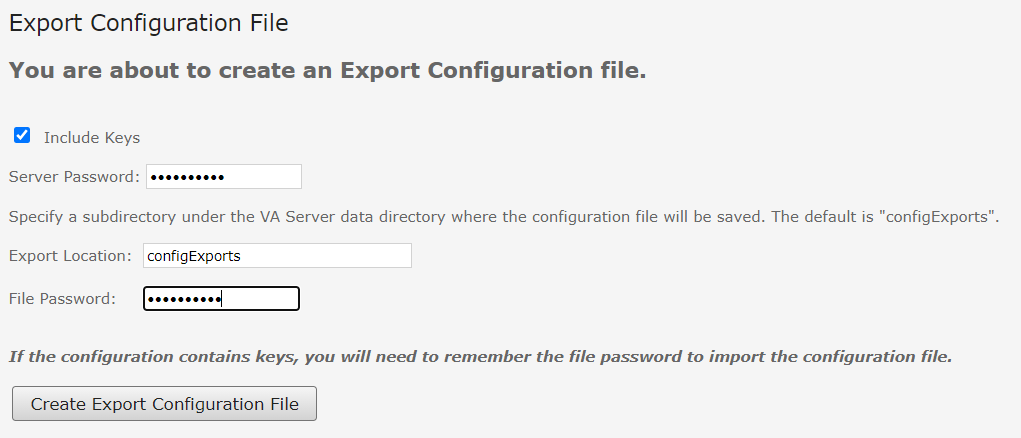
3) Go to the exported file, open it in an editor and locate the key you wanted to access. You should find it near the end of the file. You can identify the key by the parameter name.

4) Copy the value of encryptedData and save it in a new file.
5) Replace every occurrence of \n by a line break. The result should look like:
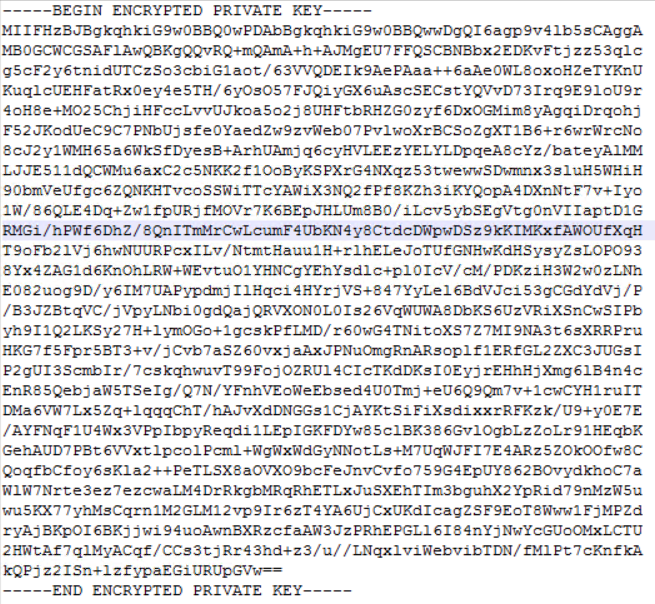
6) Save the resulting file. It contains the private key in encrypted form. The password for the key is the file password you selected when you exported the configuration.