KB Article #181377
FLASH EOL: How to override FLASH EOL and whitelist domains in main browsers on Windows.
Context:
As part of Flash End Of Life event Adobe will block Flash content from running in Flash Player beginning January 12, 2021. This applies to all Flash versions higher than 32.0.0.371 - meaning that all Flash versions released after May 2020 have a "timebomb" inside that prevents them from playing Flash content starting with January 12, 2021.
This behavior can be overridden by using the domain-level allow list functionality available in Adobe’s latest releases of Flash Player. Source: Adobe Flash Player EOL Enterprise Information Page.
Additionally, various updates at browser level are already planned and are expected to remove completely the ability to run Flash in the browser itself.
The purpose of this article is to provide extra, browser specific, details and clarify the whitelisting mechanism of Adobe Flash Player on a Windows 10 desktop. The example below can be used for test purposes or in case one decides to freeze their environment in order to continue using Flash after 12 Jan 2020. In any situation one should refer to the Adobe, browser or OS documentation for complete details and recommendations.
Whitelisting explanation:
The whitelisting mechanism is described by Adobe in the Flash Player Administration Guide and is based on several parameters (EOLUninstallDisable, EnableAllowList, AllowListUrlPattern) that can be configured in mms.cfg file (a file that can be installed by network administrators on each client machine to enforce common global security and privacy settings).
- EOLUninstallDisable:
- Optional; default value=0 (False)
- When set to 1 (True) it will disable unsolicited prompts by Adobe to uninstall Flash player, so that users do not uninstall Flash by mistake.
- EnableAllowList:
- Default value=0 (False)
- When set to 1 (True) enables system administrators to allow Flash Player to only load content from a set of allowed URLs. Having EnableAllowList=1, admins can add in the mms.cfg the URLs, using the AllowListUrlPattern for each and every URL that they want the Flash Player to allow its content loading in the browser.
- AllowListUrlPattern:
- A discrete URL or pattern that is allowed to run FLASH content in the browser.
- Several lines can be added to whitelist multiple URLs
- Accepted patterns are presented in more details in Flash Player Administration Guide
How to activate Whitelisting or domain-level allow list:
- Check the browser version to determine if Flash is allowed. High level details are provided in the table below.
- Check if Flash is (still) available on the system (at browser or OS level).
- Chromium based browsers (Chrome, Edge, Opera) are relying on Flash Player PPAPI (e.g. pepflashplayer64_32_0_0_465.dll)
- Firefox is relying on Flash Player NPAPI (e.g. NPSWF64_32_0_0_465.dll)
- Internet Explorer is relying on Flash Util Active X (FlashUtil_ActiveX.dll).
- Flash Player for Internet Explorer - ActiveX
- Flash Player for Firefox - NPAPI
- Flash Player for Opera and Chromium-based browsers - PPAPI
The below links for Flash offline installers are available and described in the Installation problems | Flash Player | Windows 7 and earlier Adobe KB: - Locate or create the mms.cfg file in the location required by the browser you are using.
Check the table below for standard mms.cfg file locations and Flash Player Administration Guide for more details. - Edit the mms.cfg file and whitelist the URL that you wish to test.
For example, to allow access to the PassPort server available at https://passport.axway.com:6453/ui one can use a mms.cfg that looks like this:
mms.cfg:EOLUninstallDisable=1 EnableAllowList=1 AllowListUrlPattern = https://passport.axway.com:6453/ - Test in the chosen browser by accessing the URL containing Flash.
| Browser | Highest version supporting Flash | Flash DLL location | mms.cfg file location |
|---|---|---|---|
| Chrome | 87 | C:\Windows\System32\Macromed\Flash\pepflashplayer64_32_0_0_465.dll or C:\Users\%username%\AppData\Local\Google\Chrome\User Data\PepperFlash\32.0.0.465\pepflashplayer.dll |
C:\Users\%username%\AppData\Local\Google\Chrome\User Data\Default\Pepper Data\Shockwave Flash\System\mms.cfg |
| Edge | 87 | C:\Windows\System32\Macromed\Flash\pepflashplayer64_32_0_0_465.dll or C:\Users\%username%\AppData\Local\Microsoft\Edge\User Data\PepperFlash\32.0.0.465\pepflashplayer.dll |
C:\Users\%username%\AppData\Local\Microsoft\Edge\User Data\Default\Pepper Data\Shockwave Flash\System\mms.cfg |
| Opera | 73 | C:\Windows\System32\Macromed\Flash\pepflashplayer64_32_0_0_465.dll | C:\Users\%username%\AppData\Roaming\Opera Software\Opera Stable\Pepper Data\Shockwave Flash\System\mms.cfg |
| Firefox | 84 | C:\Windows\System32\Macromed\Flash\NPSWF64_32_0_0_465.dll | C:\Windows\SysWOW64\Macromed\Flash\mms.cfg |
| Internet Explorer | NA | C:\Windows\SysWOW64\Macromed\Flash\FlashUtil_ActiveX.dll | C:\Windows\SysWOW64\Macromed\Flash\mms.cfg |
⚠ Important: Newer browser versions will no longer support Flash. Chromium, for example, will completely remove Flash support/capabilities starting with version 88.
When Automatic Browser Update is enabled the newer versions will remove Flash completely and the whitelisting solution will no longer function.
System folder needs to be created manually if it does not exist already in "..\Pepper Data\Shockwave Flash\" hierarchy in the above mentioned Paths for the mms.cfg file.
Troubleshooting:
Below is a list of issues encountered and solved:
- EditPlus reporting incorrectly that the mms.cfg was written/modified in "windows" folder
The file was not actually written/modified in "C:\Windows\SysWOW64\Macromed\Flash\mms.cfg" location although EditPlus editor was showing it as saved.
Solution: Elevated permissions are needed in order to write in "C:\Windows\" folders. One can also use other editor (notepad) for this specific task or "copy/paste" the file from another location. - mms.cfg created as mms.cfg.txt
By default, Windows Explorer does not show the file extension. File Name shows "mms.cfg" while file type shows "Text Document".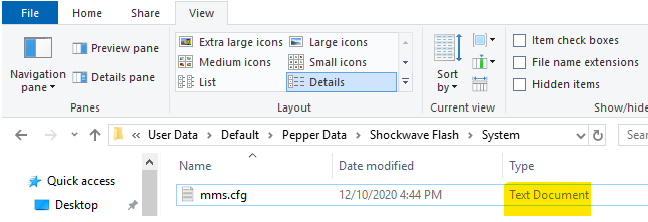
The real name of such a file is "mms.cfg.txt" and is not taken into consideration when checking the whitelist.
Solution:
In Windows Explorer go to View menu and check the "File name extensions" check box.
Rename the file from "mms.cfg.txt" to "mms.cfg"
FLASH EOL related articles:
FLASH EOL: Axway products impacted by Adobe Flash Player end of life
FLASH EOL: Axway Desktop Client - simplified User Guide
FLASH EOL: How to override FLASH EOL and whitelist domains in main browsers on Windows
FLASH EOL: How to activate debug when troubleshooting Axway Desktop Client?
FLASH EOL: Identifying and using the correct pepflashplayer.dll