Defining communication parameters
About
Axway Server communication parameters
How
to define communication parameters
Adding
a CommNetwork
Adding
a CommAdapter
Adding
a CommPoint
About Axway Server communication parameters
To send objects to Server on a given Axway Server, you must define
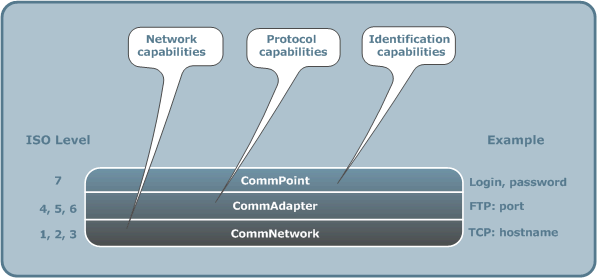
how to communicate with it. The communication capabilities of the Axway Server comprise a maximum of three elements (depending on the Axway Server):
- CommNetwork:
the network parameters that define how data arrives at its intended destination.
For example, TCP, X.25. The CommNetwork corresponds to the Physical, Data-link
and Network layers of the OSI model.
- CommAdapter:
the protocol parameters that enable communication on a given network.
The CommAdapter corresponds to the Transport, Session and Presentation
layers of the OSI model.
A CommAdapter always depends on a specific network type and defines
how to communicate over that network:
- the protocol:
for example, PeSIT, ETEBAC, ODETTE...
- the connection
parameters: for example, the protocol identifier, the SAP (Service Access
Point), compression, connection restart options
- CommPoint:
the identification parameters required to access the Axway Server
on a given network via a given protocol. For example, the login and password
to use to access the software using an FTP CommAdapter based on a TCP
CommNetwork. The CommPoint corresponds to the Application layer of the
OSI model.
You define the communication parameters for a Axway Server on the
Communication tab.
How to define communication parameters
Before you start
Before you complete the Communication
tab, check that:
- at least one CommNetwork
is defined on the Host where the Axway Server is located
- the Host CommNetwork
type is compatible with the Axway Server
For details, seeHost /Communication tab.
The available CommNetwork types correspond to the CommNetworks defined
on the Host. For example, if the Host object has two defined CommNetwork
types (X.25 and TCP/IP), you can only add CommNetworks of those types
to the Axway Server.
However, you can add more than one CommNetwork for each type. For example,
you could add CommNetwork1, CommNetwork2 and CommNetwork3
that are all X.25 type CommNetworks.
Adding a new CommNetwork to the Axway Server
To add a new CommNetwork:
- Click
 on the Communication
tab toolbar. A new CommNetwork is added to the tree of CommNetworks in
the left pane. By default, the CommNetwork name is set to the name of
the first CommNetwork defined on the selected Host. You can modify this
name directly in the left pane.
on the Communication
tab toolbar. A new CommNetwork is added to the tree of CommNetworks in
the left pane. By default, the CommNetwork name is set to the name of
the first CommNetwork defined on the selected Host. You can modify this
name directly in the left pane.
- The CommNetwork
drop-down list in the right pane displays the set of CommNetworks
defined on the selected Host. Optionally, select a different CommNetwork
from the CommNetwork drop-down
list. You cannot directly modify the name in this field.
- Depending on the network type,
the right pane may display a set of additional fields to complete. For
details, refer to the product-specific documentation.]
- Complete the following
product-specific sub-tabs:
- General
tab: Use the parameters on this tab
to define the common values for network resources. For example, maximum
number of simultaneous connections, call direction, and so on.
- Network-specific tabs: Use the fields
on the network-specific tabs to define the link between the Axway Server, the operating system and the network. The fields on these tabs
depend on the selected CommNetwork type and the operating system of the
Host
where this Axway Server is located.
Adding a CommAdapter
You can create a maximum of 32 CommAdapters for a Axway Server.
A Axway Server can have multiple CommAdapters of the same type, each
of which is dedicated to a different process or task.
To add a new CommAdapter to the Axway Server definition:
- In the left pane of the Communication tab, select the CommNetwork
to which you want to add a CommAdapter.
- Click
 on the toolbar to add a new CommAdapter node below
the selected CommNetwork node in the left pane.
on the toolbar to add a new CommAdapter node below
the selected CommNetwork node in the left pane.
- Enter a name for the CommAdapter
in the left pane.
- In the right pane, select a
CommAdapter type from the drop-down list. This list provides all CommAdapter
types (protocols) that are compatible with the:
- OS type of the
Host
- selected
CommNetwork type
- Optionally, select a CommAdapter
Template from the Template drop-down
list. Alternatively, drag-and-drop a CommAdapter Template from the left
pane. The Template values are applied to this CommAdapter definition.
For details on templates, seeTemplate
objects.
- The remaining fields on the
CommAdapter sub-tab depend on the Axway Server type. For details,
refer to the product-specific documentation.
Adding a CommPoint
Note: This option does not apply
to Axway Transfer CFT.
You can add as many CommPoints as required for a given CommAdapter.
To define a new CommPoint:
- In the left pane of the Communication tab, select the CommAdapter
to which you want to add the CommPoint.
- Click
 on the toolbar to add a new CommPoint below the selected
CommAdapter in the left pane.
on the toolbar to add a new CommPoint below the selected
CommAdapter in the left pane.
- Enter a name for the CommPoint
in the left pane. (Use this name to specify the CommPoint to use in a
Channel.)
- Complete the product-specific
fields, such as login and password, on the CommPoint sub-tab.
For details, refer to the product-specific documentation.
Related topics
About
the Topography workbench
About
Axway Servers
Creating
Axway Servers
Using
the Creation Wizard